
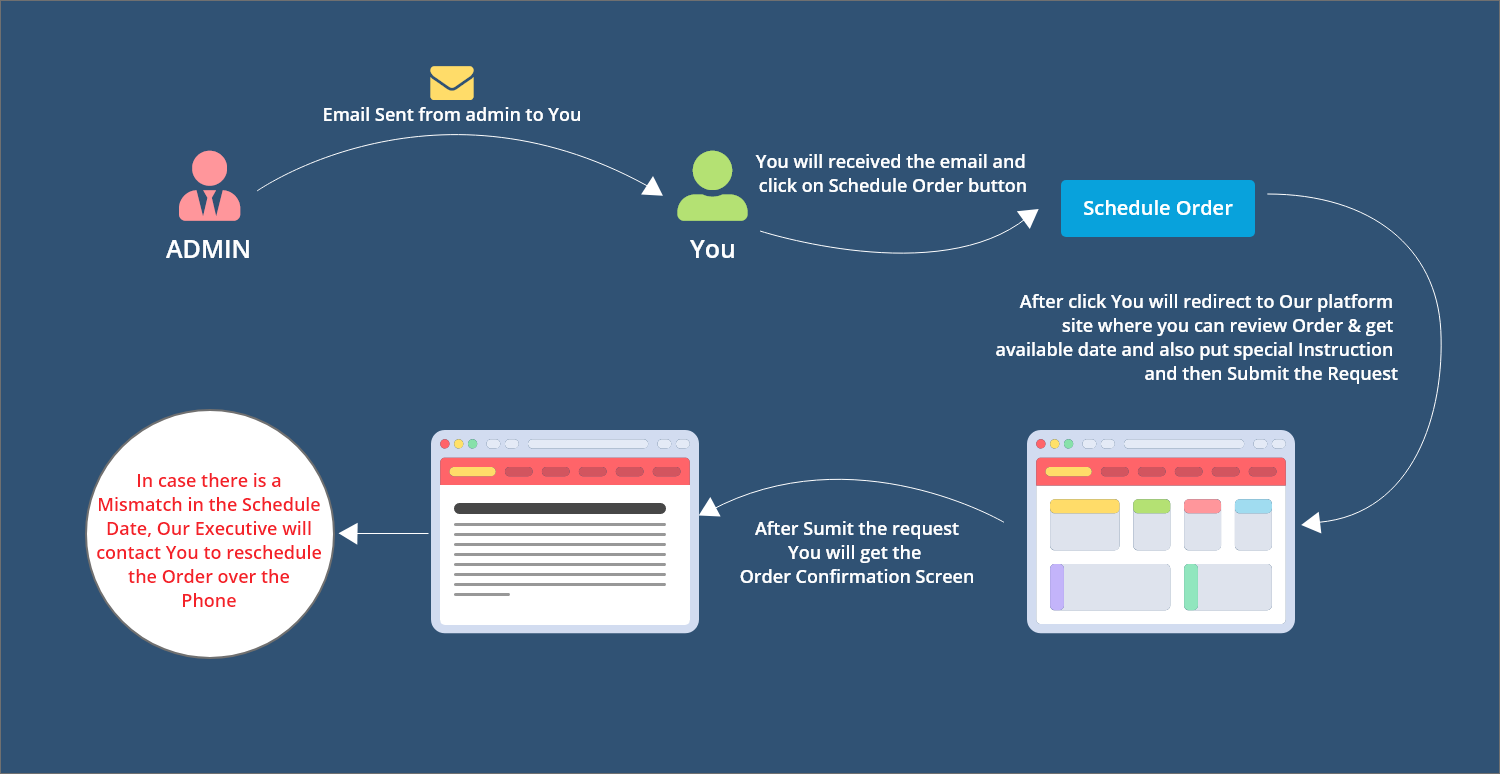
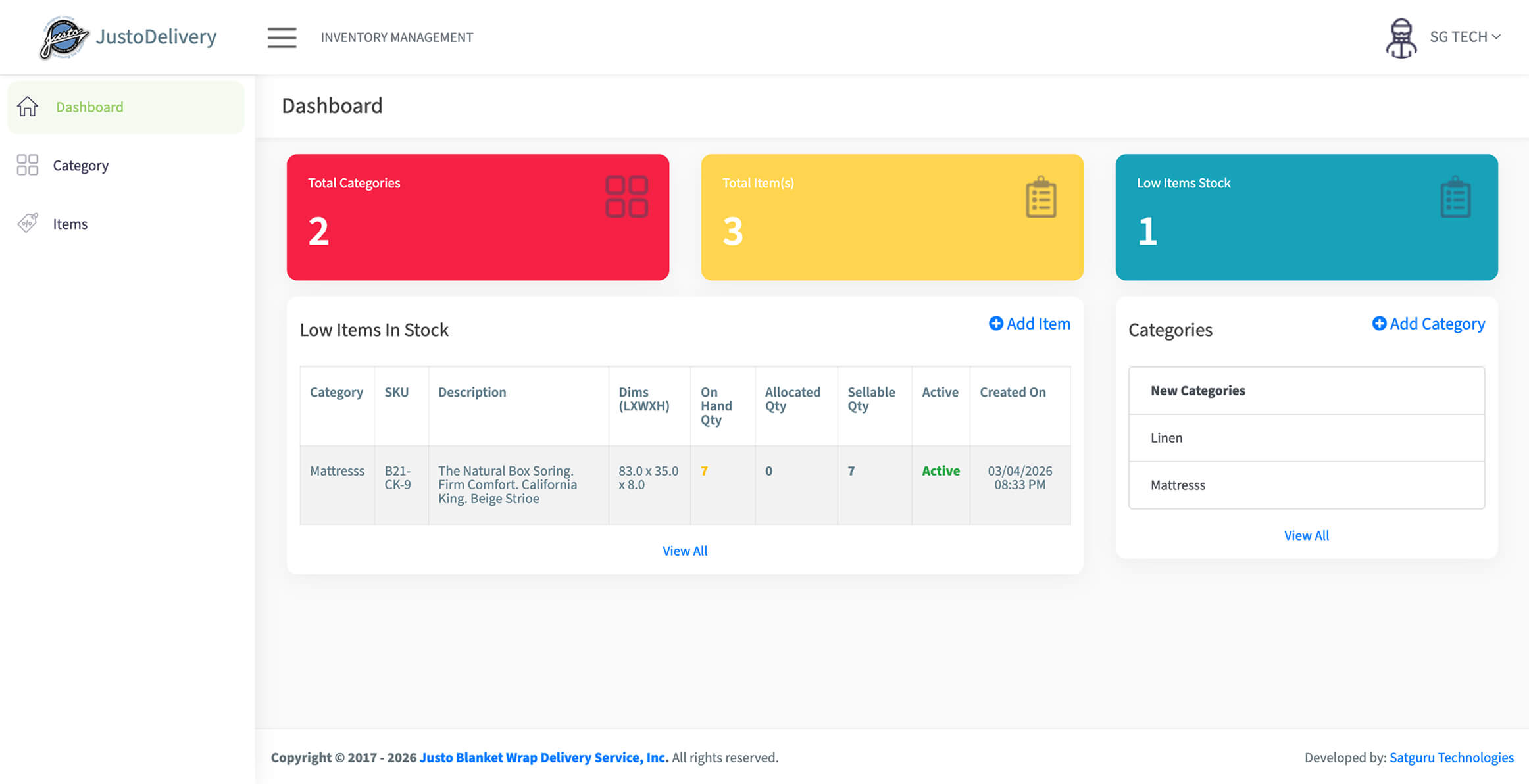
After a customer logs into the system successfully and is redirected to the account dashboard page. On this dashboard page there is an ‘Actions’ button on the top right hand corner of the page with a dropdown icon. Click on this dropdown icon and two options will be displayed namely ‘New Order’, ‘Inventory’ and ‘Receiver…Continue Reading “Inventory Management”
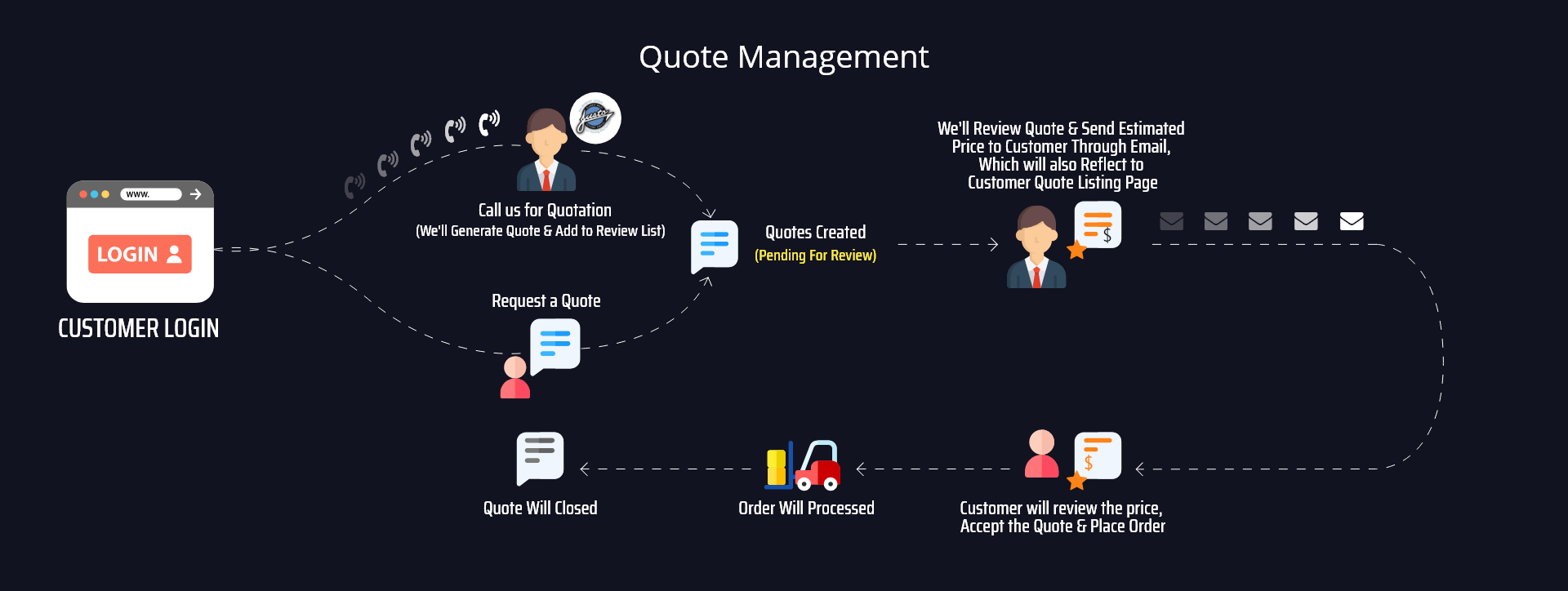
This page will display a list of quotations requested (if any) by the user. This is a page where the user can ‘Request a Quote’ for his order. After clicking on ‘Request a Quote’ user will be redirected to a page where he will fill necessary details about the order. Details will include: The quote…Continue Reading “Quote Management”
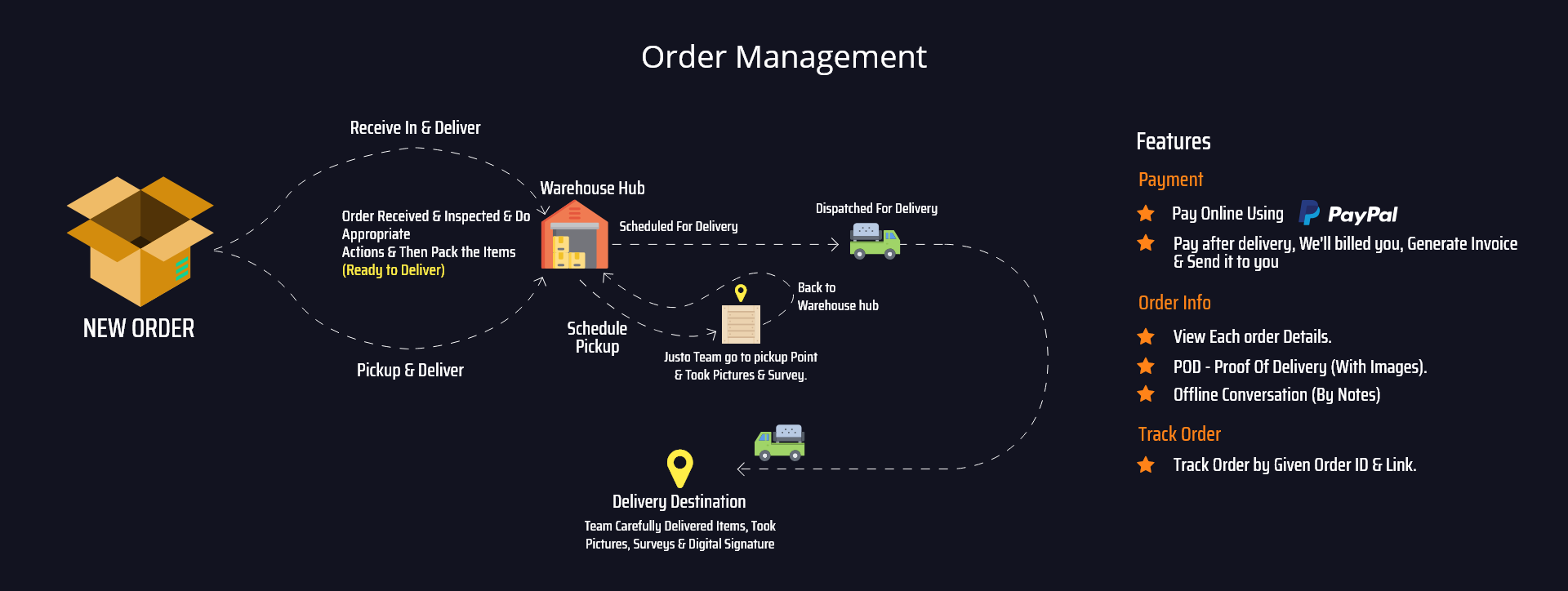
There are two ways for a user to place an order. Either a user can place order after accepting the estimate quote. OR a user can create an order directly without ‘requesting a quote’ from the user dashboard. For placing an order, the user will be redirected to a page where he will fill necessary…Continue Reading “Order Management”
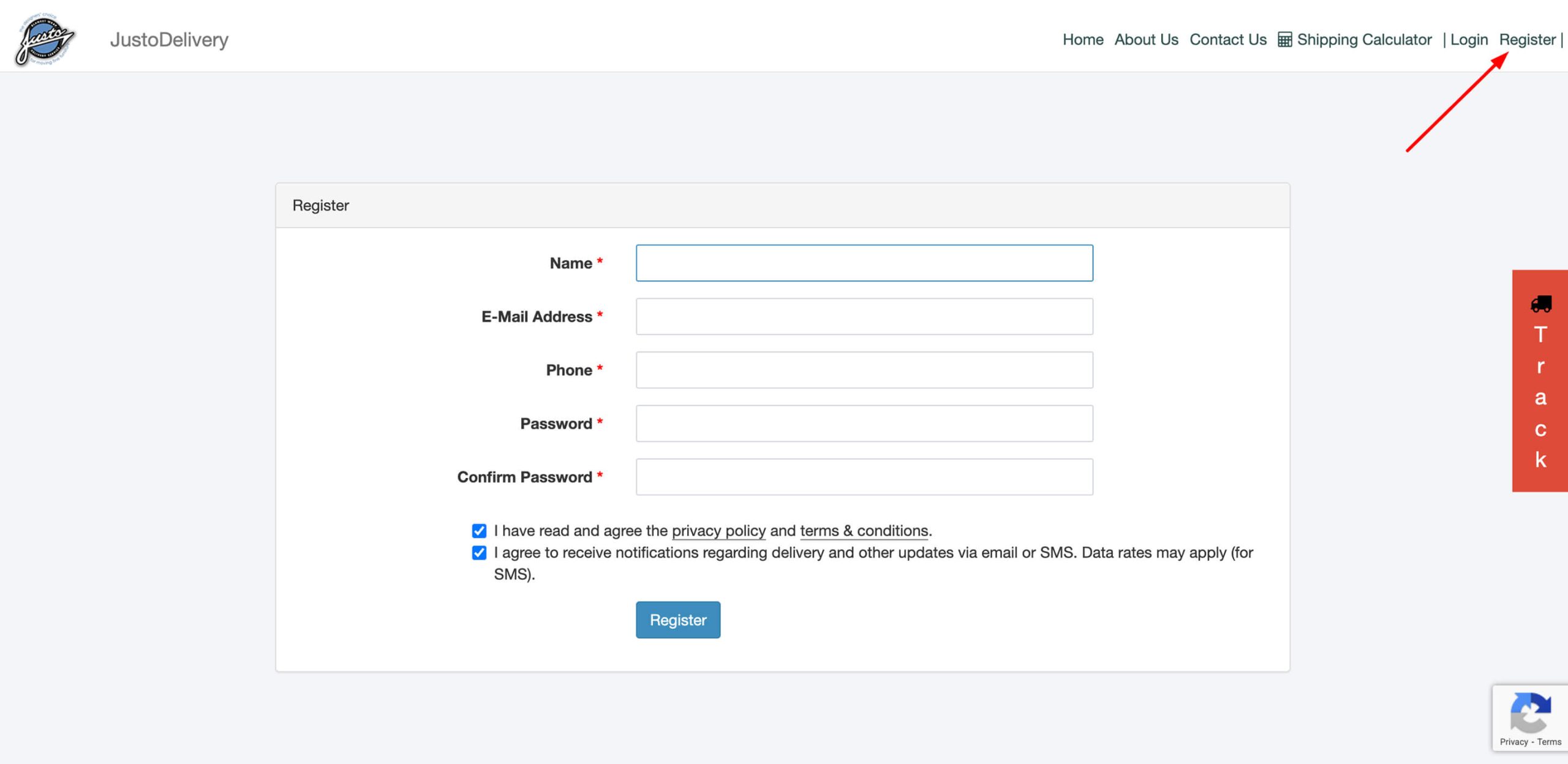
It is easy to manage your order at anytime. A user can get registered on the website by providing details such as name, e-mail, phone number and password. (User account can also be created on an out of system request). User can then login by providing his e-mail id and password. There is also an…Continue Reading “Customer Registration and login”
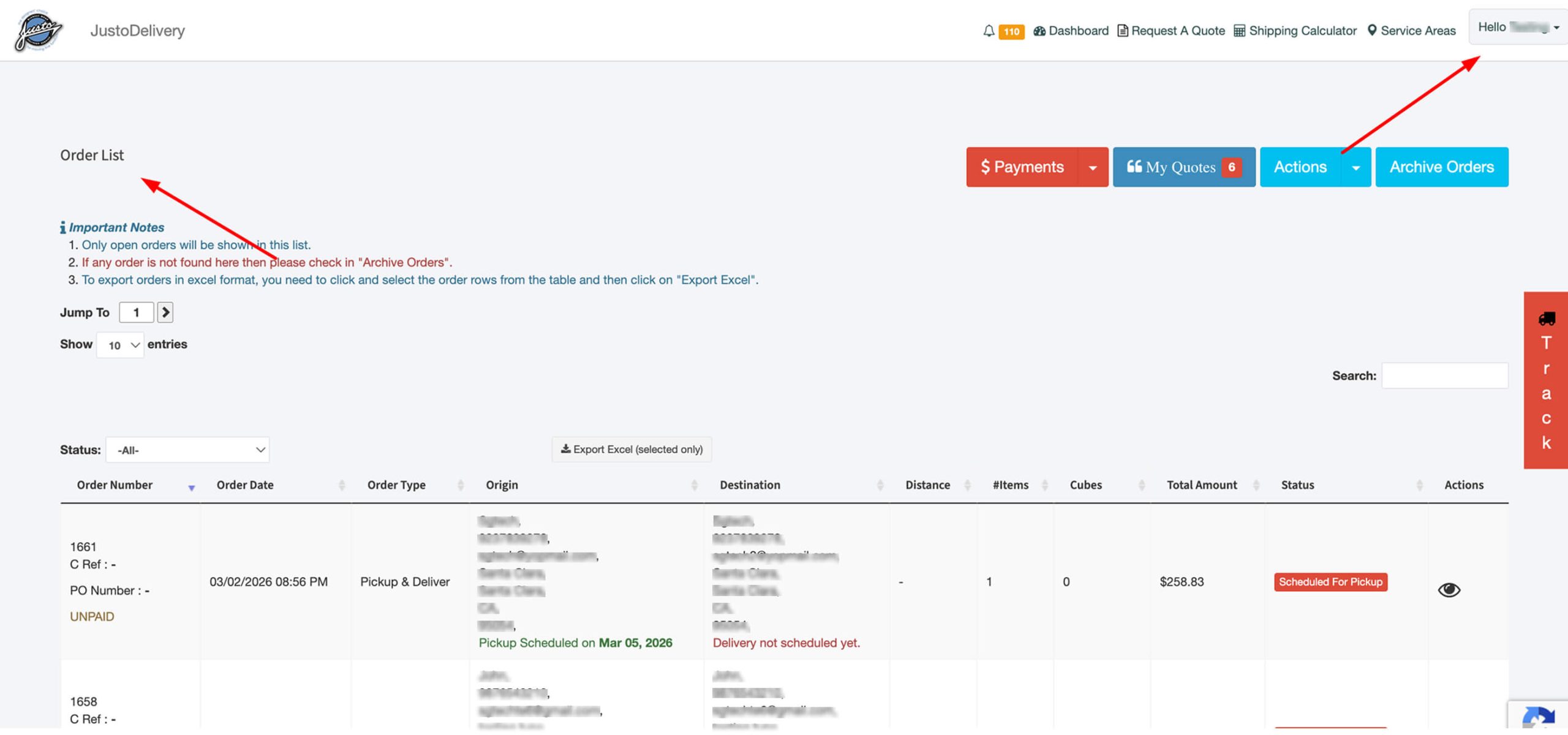
After successfully login, a user will land on the dashboard page. On the dashboard there are four main functions namely ‘Payments’, ‘My Quotes’, ‘Actions’ and ‘Archive Orders’. Dashboard page will display a list of ‘Orders’ (if any) with all their details. User can cancel any of his orders and perform actions such as ‘print order’,…Continue Reading “Customer Dashboard”